
ScreenStudio
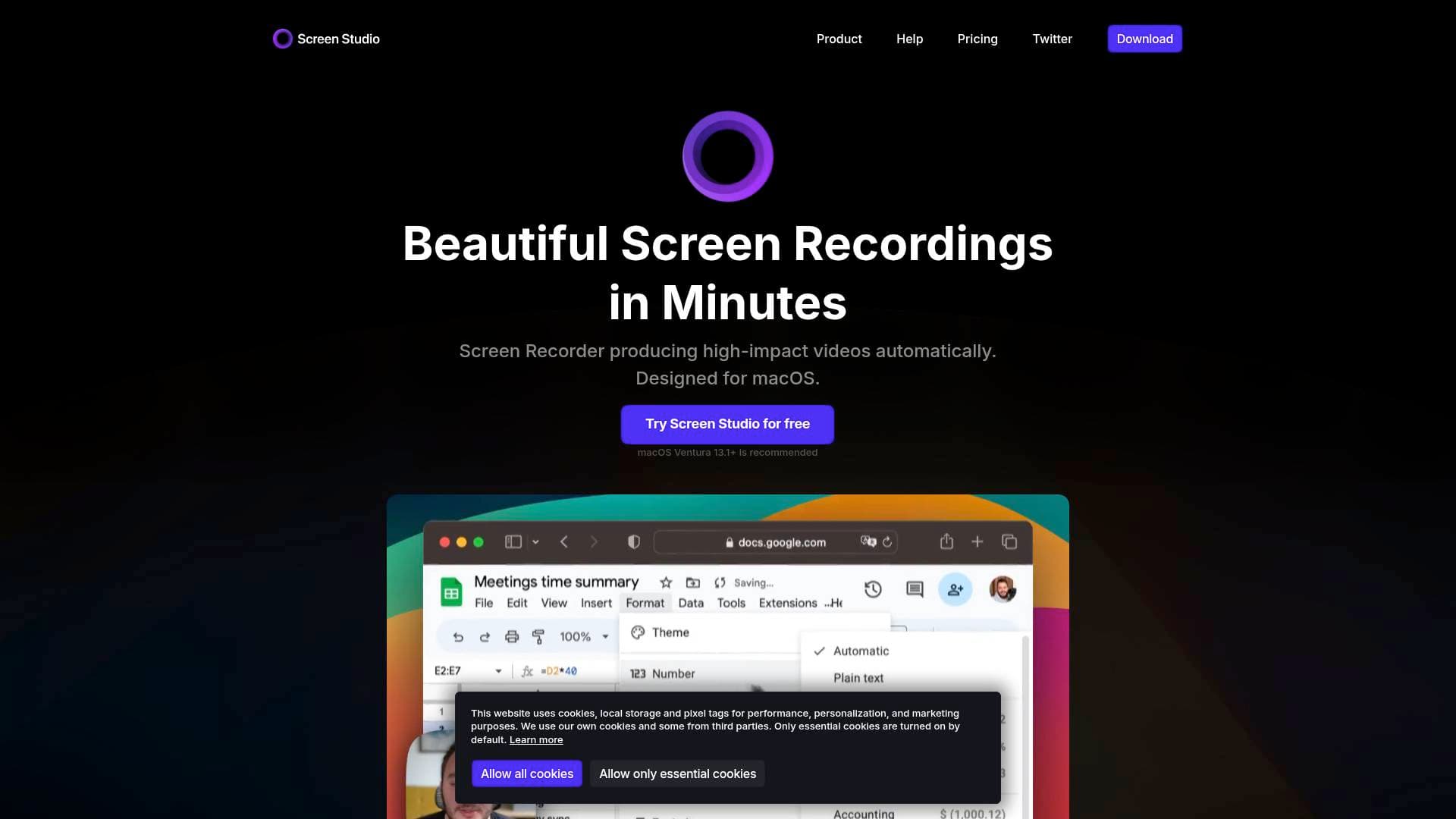
Screen Studio is a professional macOS screen recording tool that automatically adds zoom, smooth cursor movement, and polished animations to create stunning tutorials, demos, and social media videos.
What is Screen Studio? A Content Creator's Guide
Screen Studio is a professional screen recording software built exclusively for macOS that transforms raw screen captures into polished, visually engaging videos. For content creators who produce tutorials, product demos, online courses, and social media content, the core challenge has always been the same: raw screen recordings look flat and hard to follow. Screen Studio solves this by automatically applying zoom effects, smoothing cursor movements, and adding professional animations without requiring any manual video editing work. The result is a finished video that looks like it took hours to produce, but can be completed in minutes. It supports recording from the entire display, a single window, or a custom area, and also handles webcam overlays, microphone audio, system audio, and even iOS device capture via USB. For creators publishing across different platforms, Screen Studio handles both horizontal and vertical output formats, automatically adjusting all zoom animations for each orientation. This is a screen recording tool designed with an opinionated approach: it makes decisions for you so the final output looks beautiful by default.
Screen Studio Features That Matter for Content Creators
-
Automatic Zoom on Mouse Actions: Screen Studio automatically detects where you're clicking and zooms in on those areas during playback, making tutorials and demos far easier to follow. This is especially valuable for creators publishing to mobile viewers or social platforms where small screen details would otherwise be invisible.
-
Smooth Cursor Movement: Shaky, rapid mouse movements are automatically transformed into smooth, fluid glides. Creators no longer need to re-record takes just because their cursor moved erratically, since this correction happens automatically in post.
-
Vertical Mode Export for Social Media: With one click, creators can switch the output to vertical format for TikTok, Instagram Reels, or YouTube Shorts. All zoom animations are automatically recalculated and repositioned for the vertical layout, saving significant editing time.
-
Manual Zoom with Timeline Editing: Beyond automatic zooms, creators can manually select specific parts of their recording to emphasize. Screen Studio animates all transitions automatically, and zooms can be adjusted simply by dragging them on the timeline.
-
Webcam Overlay with Smart Positioning: The webcam feed overlays the screen recording and slightly zooms out to avoid covering the cursor. This is ideal for tutorial creators who want a face-cam presence without obstructing the on-screen action.
-
On-Device Transcript and Subtitle Generation: Screen Studio can generate a transcript of the recorded audio and add it as subtitles directly to the video. Critically, this processing happens entirely on the local machine with no data sent to external servers, making it a strong choice for privacy-conscious creators.
-
iOS Device Recording via USB: Creators building mobile app tutorials or showcasing iPhone and iPad apps can connect their device with a USB cable and record directly. Screen Studio automatically detects the device model and color, and offers a range of device frames and colors to customize the presentation.
-
Export Up to 4K 60fps and GIF: Videos can be exported at up to 4K resolution at 60 frames per second, or as highly optimized GIFs. Export presets are available for web, social media, and further editing in external video editors, with optimal technical settings selected automatically.
-
Shareable Links and Clipboard Export: Finished videos can be shared via a generated link or copied directly to the clipboard and pasted into any app, chat, or social media platform. This makes quick sharing for feedback or collaboration extremely fast.
-
Shareable Presets for Brand Consistency: Creators can save their visual settings as a preset and share it with collaborators or team members. This ensures that all videos produced across a channel or brand maintain a consistent look without each person having to manually configure settings.
-
Keyboard Shortcut Display: For tutorial creators, Screen Studio can record and visually display keyboard shortcuts used during the recording. This is a practical feature for software tutorial channels where viewers need to see exactly which keys are being pressed.
-
Audio Enhancement: Voice volume is normalized automatically, and background noise is removed without any manual processing. This gives creators cleaner audio output without needing a separate audio editing tool.
-
Background Music and Camera Settings: Screen Studio supports adding background music to recordings and includes camera settings with options for background wallpapers, portrait mode, and a Studio Light effect that enhances webcam lighting for a more professional appearance.
-
Motion Blur: Movement within videos is rendered with motion blur, giving the final output a look that resembles professional video editing software output rather than a raw screen capture.
Which Content Creators Should Use Screen Studio?
Screen Studio is purpose-built for creators who regularly produce screen-based content and want professional results without spending hours in a video editor. It works best for creators who value speed and visual quality over deep manual control. The tool is available on macOS only, so it is exclusively relevant to Mac users.
Primary creator types:
- Tutorial and course creators who need zooms, cursor clarity, and audio cleanup without manual editing
- App and software reviewers on YouTube who want polished demos with automatic zoom and smooth cursor animations
- Mobile app creators who want to showcase iPhone or iPad apps with proper device frames and USB-connected recording
- Social media video creators on TikTok, Instagram, or YouTube Shorts who need vertical format exports with auto-adjusted animations
- Indie developers and product creators building demo videos for launches, where visual quality directly impacts conversion
- Educators and online course instructors who need webcam overlays, subtitle generation, and system audio recording in a single tool
- Design and UX creators who want to share work-in-progress recordings with clients or audiences using shareable links
- Newsletter writers and bloggers who embed short GIF or video demos in their content and need quick, high-quality exports
Experience level: Screen Studio is accessible to beginners because most effects are applied automatically, but it also gives experienced creators manual control over zooms, cuts, speed adjustments, and branding.
Team size: Works well for solo creators and small teams alike, with shareable presets ensuring visual consistency across multiple contributors.
Getting Started with Screen Studio
- Download Screen Studio for macOS. macOS Ventura 13.1 or higher is recommended, and both Intel and other Mac configurations are supported.
- Launch the app and complete the permissions setup, which grants Screen Studio access to screen recording, microphone, and camera inputs.
- Activate your Screen Studio plan. Without an active plan, all features are accessible except for exporting video files, so creators can explore the tool before committing.
- Start a new recording by selecting your capture area (entire display, single window, or custom region), then configure webcam, microphone, and system audio inputs as needed.
- After recording, review the automatic zooms on the timeline, adjust any manually, apply a preset or customize the background and branding, then export using the appropriate preset for your destination platform.
Screen Studio FAQ for Content Creators
Is Screen Studio available for Windows? Screen Studio is currently macOS-only. A Windows version has been referenced as a future question but no release details are provided.
Does Screen Studio send my data to external servers? Transcript generation happens entirely on the local machine, and no data is sent to external servers during that process.
How many devices can I use Screen Studio on? Both the monthly and yearly plans include access on up to 3 personal macOS devices.
Can I export videos as GIFs? Yes, Screen Studio supports exporting as both MP4 video files (up to 4K 60fps) and as highly optimized GIFs, making it practical for embedding in blog posts, newsletters, or documentation.
Can I record my iPhone or iPad with Screen Studio? Yes, connecting an iPhone or iPad via USB cable enables direct recording. Screen Studio automatically detects the device model and color and provides a range of device frames to choose from.
Is there an education discount? An education discount is listed as a question in the FAQ section, though the specific discount details are not expanded in the available content.
Can I use Screen Studio without an active subscription? All features are accessible without an active plan, but exporting video files requires a paid subscription.
The Verdict: Is Screen Studio Worth It for Content Creators?
Screen Studio is a strong choice for any Mac-based content creator who regularly produces screen recordings and wants professional-quality output without a complex editing workflow. The automatic zoom, cursor smoothing, motion blur, and audio enhancement features eliminate most of the tedious post-production work that typically slows down tutorial and demo video creation. The vertical export mode makes it genuinely useful for social media creators, not just desktop tutorial producers. The on-device transcript generation and privacy-first approach add meaningful value for creators who handle sensitive content. The main limitation is platform exclusivity: this is a macOS-only tool, so Windows creators are entirely excluded. For Mac users producing tutorials, app demos, course content, or social media screen recordings, Screen Studio delivers a level of automatic polish that would otherwise require significant manual effort in a traditional video editing tool.
Details
One link. Every channel, rate, and piece of work brands need to evaluate you. Built for how creators actually get hired.
Claim your profile
Live creator, content, and marketing roles from real companies, with the pay, market, and context the raw job page never gives you.
Browse jobs
 Post Bridge