
OBS Studio
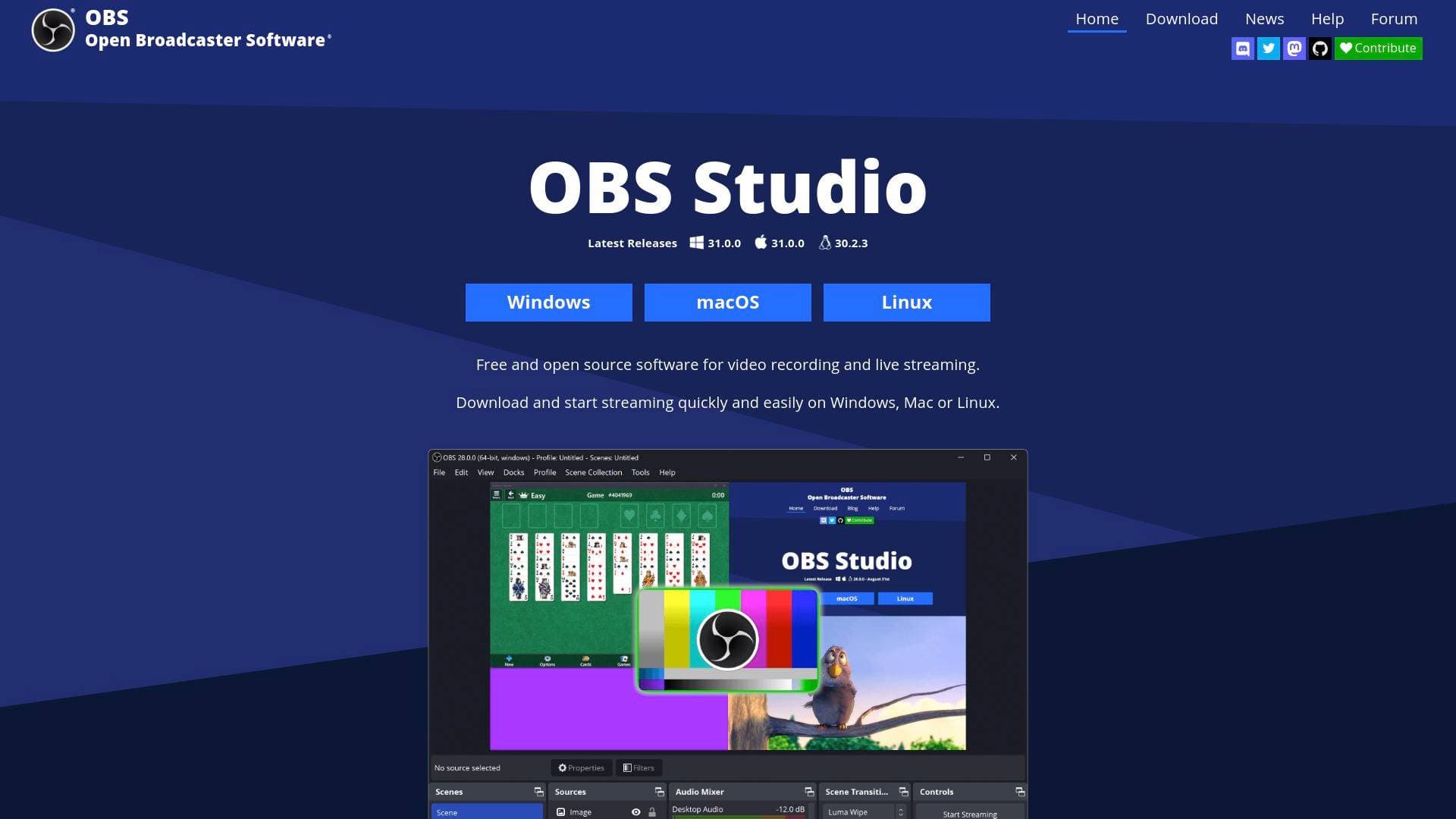
OBS Studio is a free, open source live streaming and video recording software for content creators on Windows, Mac, and Linux with high-quality encoding.
Brief Overview of OBS Studio for Content Creators
OBS Studio is a completely free and open source live streaming software and video recording tool built for creators who need professional broadcast quality without a price tag. It solves one of the most persistent problems in the creator economy: accessing powerful, flexible production software without subscription fees or watermarks. The software runs on Windows 10/11, macOS 12.0 or newer, and Linux, making it accessible across virtually every desktop platform creators use. At its core, OBS Studio delivers high-performance real-time video and audio capturing and mixing, with H264/AAC encoding that holds up for both streaming and local recording workflows. Creators can broadcast to Twitch, YouTube, and many other streaming platforms directly from the software. What sets OBS Studio apart is its combination of zero cost, deep configurability, and a thriving open source community that continuously extends its capabilities through plugins and scripts. Backed by premier-tier sponsors including YouTube, Twitch, and Logitech, the project has the institutional support to remain a long-term, reliable tool for creators at every level.
OBS Studio Key Features for Content Creators
-
High-Performance Real-Time Video and Audio Capturing and Mixing: OBS Studio captures and mixes video and audio in real time with no performance compromise. Creators can pull in multiple source types simultaneously, including window captures, images, text overlays, browser windows, webcams, and capture cards, all within a single production environment.
-
Unlimited Scenes with Custom Transitions: Creators can build an unlimited number of scenes and switch between them using customizable transitions or their own stinger video files. This is essential for streamers who need to move between gameplay, facecam-only, BRB screens, and outros without interrupting the broadcast.
-
Intuitive Audio Mixer with VST Plugin Support: The built-in audio mixer gives per-source control with filters including noise gate, noise suppression, and gain adjustments. Full VST plugin support means creators can bring professional-grade audio processing into their streams and recordings without leaving OBS Studio.
-
Studio Mode for Pre-Live Scene Preview: Studio Mode lets creators preview any scene or source before it ever goes live to viewers. This is particularly valuable during complex productions where a creator needs to set up the next segment, adjust layouts, or add new sources without the audience seeing unfinished work.
-
Multiview for Large-Scale Production Monitoring: The Multiview feature displays up to 8 different scenes simultaneously, letting creators monitor their entire production at a glance. Transitioning to any scene takes just a single or double click, giving solo creators a near-broadcast-level production control surface.
-
Hotkey System for Nearly Every Action: Creators can assign hotkeys to a wide range of actions, including switching scenes, starting and stopping streams or recordings, muting audio sources, and enabling push-to-talk. This level of keyboard control keeps hands free and reduces on-screen clicking during live broadcasts.
-
Modular Dock UI: The interface uses a modular "Dock" system that lets creators rearrange the layout to match their workflow. Individual docks can even be popped out into separate windows, which is useful for multi-monitor setups common among streamers and video producers.
-
Streamlined Settings Panel: A centralized settings panel gives creators access to a wide array of configuration options covering every aspect of broadcasting and recording. The Auto-configuration Wizard (accessible from the Tools menu) can automatically detect the best settings for a creator's hardware, making initial setup far less intimidating.
-
Powerful Plugin and Scripting API: OBS Studio includes a robust API that supports native plugins for high-performance integrations as well as scripts written in Lua or Python. The community-driven Resources section hosts a growing library of plugins, such as the Advanced Scene Switcher for automation and Live Background Removal Lite for AI-powered virtual backgrounds, dramatically expanding what creators can do out of the box.
-
MKV Recording Format with Remux Support: Creators can record in MKV format, which protects footage in the event of an unexpected shutdown or power outage by preserving everything captured up to that point. Recordings can then be remuxed into MP4 via the File menu for compatibility with editing software.
OBS Studio Target Users & Use Cases for Content Creators
OBS Studio is built for creators who want full control over their production without paying for it. Its depth of features makes it suitable for beginners using the Auto-configuration Wizard all the way up to experienced streamers building multi-scene broadcast setups. Solo creators and small teams alike can benefit from its flexible architecture.
-
Primary creator types: Live streamers on Twitch and YouTube, reaction channel creators, gaming content creators, podcasters who record video, tutorial and screen-capture YouTubers, and any creator producing multi-source video content.
-
Experience level: Accessible for beginners via the Auto-configuration Wizard, but deep enough to satisfy advanced creators who want granular control over encoding, audio filters, and scene automation.
-
Team size: Primarily designed for solo creators, though the modular UI and plugin ecosystem support more complex setups that could involve multiple operators.
-
Specific use cases:
- A Twitch streamer building a multi-scene layout with webcam, game capture, and overlay sources
- A reaction channel creator recording separate video tracks using the Source Record Filter for clean editing in post-production
- A YouTube creator using Studio Mode to prep the next segment while the current one is live
- A podcaster capturing audio with per-source noise suppression and gain filters for clean recordings
- A creator using the Advanced Scene Switcher plugin to automatically end a stream when a media file finishes playing
- A gaming streamer adding AI-powered background removal via the Live Background Removal Lite plugin without sacrificing GPU performance
- A creator using hotkeys for push-to-talk and scene switching to maintain a smooth, professional broadcast
- A video creator recording in MKV format to protect long-form content from data loss during recording sessions
-
Content types: Live streams, recorded video content, screen captures, reaction videos, gaming content, tutorials, and podcast recordings.
How to Get Started with OBS Studio
-
Download and install: OBS Studio 32.1.0 is available as a free download for Windows (10 and 11), macOS (12.0 or newer, with separate builds for Intel and Apple Silicon), and Linux. Installation is straightforward with platform-specific installers.
-
Run the Auto-configuration Wizard: On first launch, open the Tools menu and run the Auto-configuration Wizard. Select recording or streaming as the primary use case, let it analyze the system hardware, apply the recommended settings, and restart OBS Studio.
-
Build your first scene: Add sources to a scene by selecting from available input types, including window captures, webcam, browser windows, images, and text. Arrange them visually in the preview canvas.
-
Configure audio: Use the audio mixer to set levels for each source and apply per-source filters like noise gate or noise suppression for cleaner audio output.
-
Go live or start recording: Connect a streaming platform account via the Settings panel and hit "Start Streaming," or begin a local recording session. For recording, using MKV format is recommended to protect footage from unexpected interruptions.
Frequently Asked Questions About OBS Studio
Is OBS Studio really free to use? Yes, OBS Studio is completely free and open source. There are no subscription fees, watermarks, or usage limits of any kind.
What platforms does OBS Studio support for streaming? OBS Studio supports streaming to Twitch, YouTube, and many other streaming providers directly from the software.
What operating systems does OBS Studio run on? OBS Studio runs on Windows 10 and Windows 11, macOS 12.0 or newer (with separate downloads for Intel and Apple Silicon Macs), and Linux.
Can OBS Studio be extended with plugins? Yes, OBS Studio has a powerful API that supports native plugins and scripts written in Lua or Python. The community Resources section hosts a wide library of plugins, including tools for background removal, advanced scene automation, and more.
What recording format should creators use in OBS Studio? MKV is the recommended recording format because it can recover footage up to the point of any unexpected interruption, such as a power outage. Recordings can be remuxed to MP4 via the File menu afterward.
What is Studio Mode in OBS Studio? Studio Mode is a feature that lets creators preview scenes and sources privately before pushing them live to viewers, allowing adjustments and new source setups without the audience seeing unfinished content.
Does OBS Studio have an automatic setup option for beginners? Yes, the Auto-configuration Wizard in the Tools menu analyzes the creator's hardware and automatically applies optimized settings for either streaming or recording use.
Bottom Line: Should Content Creators Choose OBS Studio?
OBS Studio is the go-to live streaming software and video recording tool for creators who want professional-grade production capabilities at absolutely no cost. It is particularly well-suited for streamers on Twitch and YouTube, gaming content creators, reaction channel producers, and anyone who records multi-source video. The combination of unlimited scenes, a full audio mixer with VST support, Studio Mode, hotkey control, and an expansive plugin ecosystem gives creators a production environment that scales from beginner to advanced without ever requiring an upgrade purchase.
The main consideration is that OBS Studio has a learning curve. The depth of its configuration options can feel overwhelming at first, though the Auto-configuration Wizard significantly lowers the barrier to entry. Creators who want a highly polished, point-and-click experience out of the box may need time to get comfortable with the interface.
For any creator serious about live streaming or high-quality video recording, OBS Studio delivers exceptional value. It is free, cross-platform, actively maintained, and backed by a large community that continuously builds new tools and plugins to extend its capabilities.
Details
One link. Every channel, rate, and piece of work brands need to evaluate you. Built for how creators actually get hired.
Claim your profile
Live creator, content, and marketing roles from real companies, with the pay, market, and context the raw job page never gives you.
Browse jobs

 Post Bridge