

InstructBot
InstructBot is a desktop app for Twitch streamers that lets viewers control gameplay using bits, donations, channel points, and more through StreamElements, StreamLabs, TipeeeStream, or Twitch.
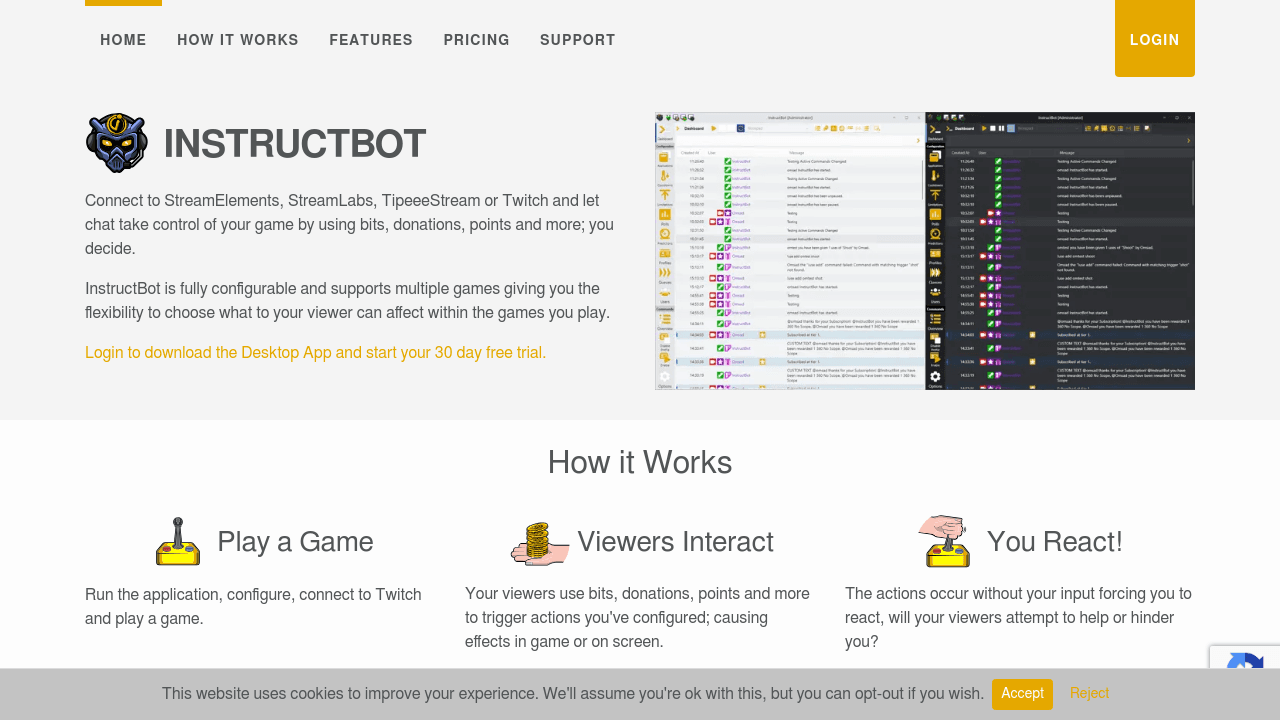
What is InstructBot? A Content Creator's Guide
InstructBot is a Windows desktop application built specifically for game streamers who want to hand some control of their gameplay over to their audience. The core problem it solves is simple but powerful: keeping viewers actively engaged during a live stream by letting them directly influence what happens on screen. Rather than passively watching, viewers can spend bits, donations, channel points, or other supported currencies to trigger real in-game actions, creating unpredictable and entertaining moments that keep both the streamer and the audience hooked. It connects directly to Twitch, StreamElements, StreamLabs, and TipeeeStream, meaning it works with the monetization and loyalty systems most streamers already have in place. Sometimes referred to colloquially as "BitBot" within the Twitch community, InstructBot supports multiple games and is fully configurable, so creators decide exactly how much chaos their viewers can cause. The result is a live streaming engagement tool that turns passive viewers into active participants, which is one of the most effective ways to build a loyal, returning audience.
InstructBot Features That Matter for Content Creators
-
Full User Configurability: Every aspect of InstructBot is configurable through its UI, giving streamers complete control over what viewers can and cannot do. Creators can allow as much or as little viewer influence as they are comfortable with, making it suitable for both chaotic "anything goes" streams and more structured, controlled experiences.
-
Multi-Platform Integration: InstructBot connects to four major streaming and tipping platforms: Twitch, StreamElements, StreamLabs, and TipeeeStream. This broad integration means streamers are not locked into a single ecosystem and can respond to bits, channel rewards, subscriptions, tips, donations, and points depending on which platform they use.
-
Input Command: One of the most impactful features, the Input Command allows viewers to press keys, click mouse buttons, or physically move the streamer's mouse during gameplay. This can lead to genuinely funny moments, like a viewer making the streamer shoot at the wrong moment, creating organic, shareable content.
-
Targeted Application Execution: Commands can be configured to only execute when a specific application is the active window. This prevents accidental command triggers when the streamer tabs out of their game, keeping the experience clean and intentional.
-
Random Command: Streamers can set up a "spin the wheel" style random command, where viewers trigger a random action from a pool of configured options. This adds an element of surprise that neither the streamer nor the viewer can predict, which is great for entertainment value.
-
Play Sound Command: Viewers can trigger custom sounds to play directly on stream. This is a popular engagement tool that lets communities build inside jokes around specific sound clips, adding personality to a channel's brand.
-
Mute Sound Command: Viewers can mute the streamer's game audio for a duration, creating a fun challenge where the streamer has to play without audio cues. It is a simple but effective way to add difficulty and humor to a stream.
-
Swap Mouse Button Command: Viewers can swap the streamer's left and right mouse buttons for a set duration, making precision gameplay suddenly much harder. It is a crowd-pleasing chaos option that works especially well in competitive or skill-based games.
-
Timeout Command: Viewers can time out other viewers in chat, with configurable durations for each command. Moderators can also be included in timeout options, and automatic restore at the end of the timeout period means the streamer does not have to manage it manually.
-
Text Command and Help Command: The Text Command lets streamers output useful information, like social media links, directly into chat on demand. The Help Command automatically generates messages that inform viewers about what actions are currently enabled, reducing the need for the streamer to explain the setup repeatedly during a stream.
-
External Command: For streamers running complex setups, the External Command feature allows InstructBot to launch other applications as part of a triggered action, extending its functionality beyond just in-game inputs.
Which Content Creators Should Use InstructBot?
InstructBot is purpose-built for game streamers, particularly those on Twitch who are looking to deepen viewer participation and make their streams more interactive. It works best for creators who already have an engaged community and want to give that community a meaningful way to spend their bits, channel points, or donations beyond just supporting the channel financially.
- Primary creator types: Twitch game streamers, variety streamers, challenge streamers, and gaming content creators who also produce VODs or clips from their live sessions.
- Experience level: The configurable UI makes it accessible for streamers who are not technically advanced, while the range of command types and targeting options gives experienced streamers plenty to work with.
- Team size: Designed for solo streamers, though the moderation and timeout features suggest it works well for channels with active mod teams too.
- Specific use cases:
- A streamer running a "viewers vs. streamer" challenge night where chat spends points to sabotage gameplay
- A creator doing a charity stream where donations trigger increasingly difficult in-game handicaps
- A Twitch streamer using channel rewards to let subscribers trigger sound effects during tense gameplay moments
- A variety streamer setting up random commands so viewers never know what chaos they are about to unleash
- A gaming creator building highlight-worthy moments by letting chat control mouse inputs during precision challenges
- A streamer using the Text Command to automatically push social links into chat when viewers ask where to follow
- A creator using the Timeout Command to let the community manage itself during high-traffic streams
- A streamer using the Mute Sound Command as a paid challenge during horror game streams
Getting Started with InstructBot
- Create an account and start the trial: Sign up using your Twitch account to begin the 30-day free trial. No payment information is required to start, and the trial is linked directly to the Twitch account used during registration.
- Download and install the Desktop App: InstructBot runs as a Windows desktop application and requires Windows 10 or 11 (64-bit) and an internet connection.
- Configure your commands: Use the application's UI to set up the commands you want to make available to viewers, choosing which actions are enabled and what triggers them (bits, donations, points, etc.).
- Connect to your platform: Link InstructBot to Twitch, StreamElements, StreamLabs, or TipeeeStream depending on where your community engages.
- Go live and react: Start your stream, launch your game, and let your viewers begin triggering actions. The commands execute automatically, forcing the streamer to react in real time.
InstructBot FAQ for Content Creators
Does InstructBot require payment to try? No payment information is required to start. Every new subscriber gets a 30-day free trial, and if cancelled within that period, no charge is applied.
What platforms does InstructBot support? It integrates with Twitch (bits, channel rewards, subscriptions, and more), StreamElements (tips and points), StreamLabs (donations and points), and TipeeeStream (donations).
What are the subscription pricing options? After the free trial, InstructBot offers a 6-month plan at 18.00 GBP or a yearly plan at 30.00 GBP. There is also a one-time API key purchase available for 30 GBP.
What are the system requirements? InstructBot requires Windows 10 or 11 (64-bit) and an active internet connection. It is a desktop application and does not run on Mac or Linux.
Can streamers control how much influence viewers have? Yes, the application is fully configurable. Streamers can enable or disable specific commands and set the conditions under which they trigger, giving full control over the viewer experience.
Will commands accidentally fire when the streamer is not in-game? No. Commands can be configured to only execute when the target application is the active window, preventing accidental triggers when tabbing out of the game.
Is InstructBot linked to a specific Twitch account? Yes. Both the trial and any purchases are linked to the Twitch account used when creating an InstructBot account, so streamers should log in with the account they intend to use for streaming.
The Verdict: Is InstructBot Worth It for Content Creators?
For Twitch game streamers who want to turn their audience from passive viewers into active participants, InstructBot delivers a focused and well-thought-out toolset. The range of command types, from input controls and sound triggers to mouse swaps and viewer timeouts, covers most of the chaos a streamer could want to offer their community. The multi-platform integration with Twitch, StreamElements, StreamLabs, and TipeeeStream means it fits into most existing streaming setups without requiring a platform switch. The 30-day free trial with no payment details required is a low-risk way to test whether the engagement style suits a particular channel's audience. The main limitation to note is that it is Windows-only and operates as a personal-use desktop application, so it is not suited for team environments or non-Windows setups. At 30 GBP per year, it represents solid value for streamers who run regular interactive sessions and want a reliable tool to manage viewer-controlled gameplay. InstructBot is best suited to gaming streamers with an active community who are ready to give their audience something genuinely fun to spend their bits and points on.
Details
One link. Every channel, rate, and piece of work brands need to evaluate you. Built for how creators actually get hired.
Claim your profile
Live creator, content, and marketing roles from real companies, with the pay, market, and context the raw job page never gives you.
Browse jobs

 Post Bridge