

AVCLabs
AVCLabs is an AI-powered video and photo enhancement suite that helps content creators upscale footage to 8K, blur sensitive content, restore old media, and remove unwanted objects with one-click tools.
What is AVCLabs? A Content Creator's Guide
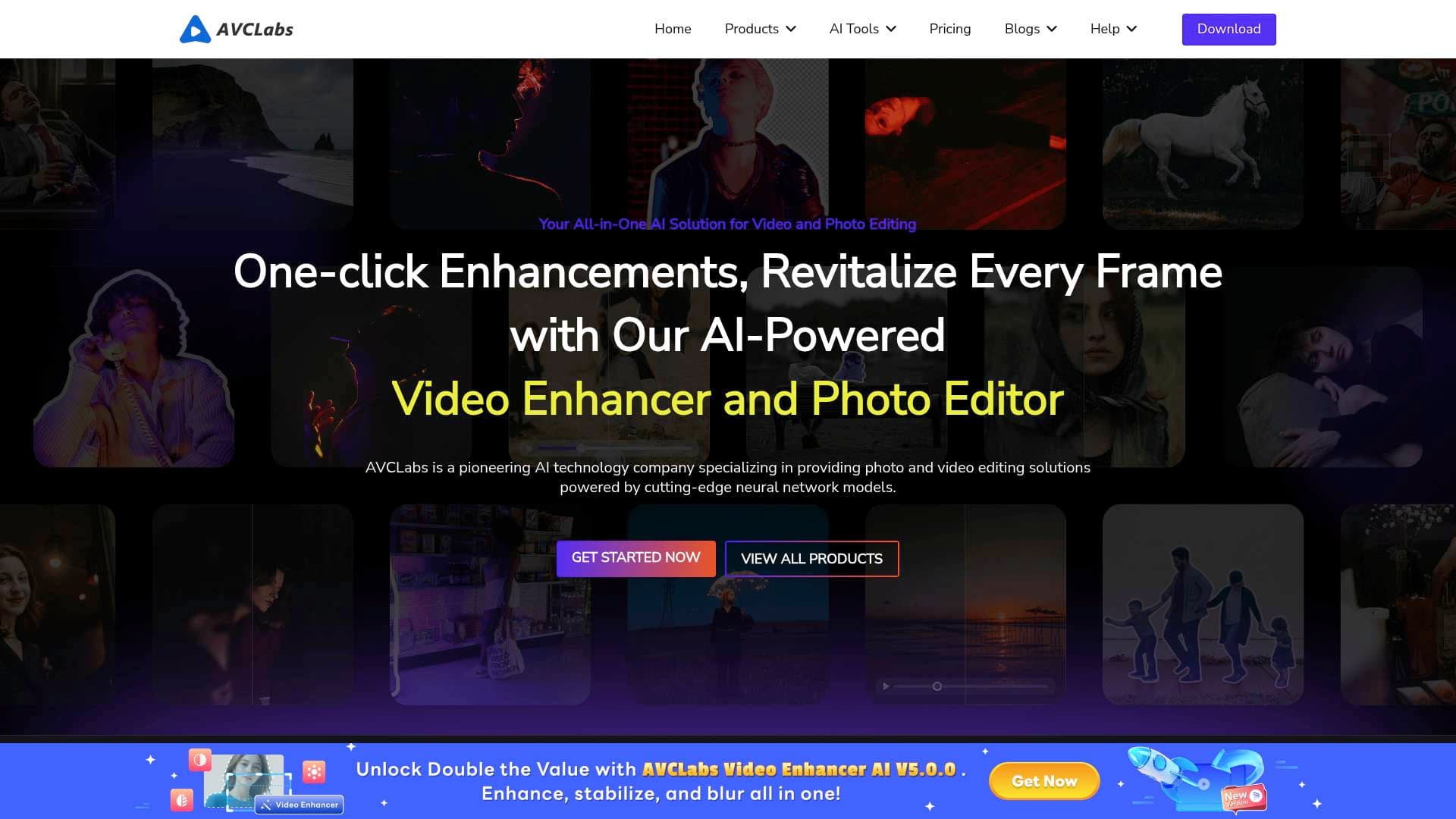
AVCLabs is a pioneering AI technology company that has built a comprehensive suite of video and photo enhancement tools powered by deep-learning neural network models. Founded in 2006 as a sub-brand of Any Video Converter, the platform made its leap into AI-driven visual processing in 2021 and has since grown into a full ecosystem of products designed to solve one of the most persistent problems creators face: low-quality footage and images that simply don't meet today's audience standards. Whether a YouTuber is sitting on a library of old 480p recordings or a vlogger needs to protect faces in street footage before publishing, AVCLabs covers the entire video production workflow from enhancement to privacy protection.
The platform spans both desktop software for Windows and macOS and a growing collection of browser-based online AI tools, making it accessible regardless of a creator's hardware setup. Its core products include AVCLabs Video Enhancer AI, AVCLabs Video Blur AI, AVCLabs Photo Enhancer AI, and AVCLabs PhotoPro AI, each targeting a distinct stage of the content creation workflow. What sets AVCLabs apart is its emphasis on one-click processing backed by AI models trained on millions of images, meaning creators don't need technical expertise to get professional-grade results. Real users have reported upscaling TikTok videos from HD at 30fps all the way to 4K at 60fps before publishing, with results described as "surprisingly good."
AVCLabs Features That Matter for Content Creators
-
AI Video Upscaling to 4K and 8K: The Video Enhancer AI uses advanced deep-learning algorithms to upscale low-resolution footage to HD, 4K, and 8K without sacrificing quality. Creators working with archival footage, old vlogs, or downloaded clips can breathe new life into content that would otherwise be unusable on modern platforms.
-
AI Face Restoration in Video: Beyond simple sharpening, AVCLabs specifically targets facial details in degraded footage. The Iris AI model within the video enhancer is built for very low-resolution and medium-resolution videos, making it ideal for restoring talking-head content, interview footage, or any video where faces are the focal point.
-
Automated Face and Object Blurring: AVCLabs Video Blur AI automatically detects and blurs faces, backgrounds, objects, and license plates in video. It can reduce manual editing work by up to 99%, which is a significant time-saver for creators producing street content, documentary-style videos, or any footage featuring bystanders who haven't consented to appear on camera.
-
Video Watermark and Object Removal: Both the desktop software and online tools include the ability to remove watermarks, logos, text, subtitles, and unwanted objects from video footage. Creators can clean up footage online for free or use the desktop application for more demanding projects.
-
AI Video Stabilization: Shaky handheld footage is a common problem for run-and-gun creators. The stabilization feature reduces jittery motion from unstable camera work, producing smoother, more watchable video without requiring expensive gimbal hardware.
-
AI Photo Enhancement and 4K Upscaling: AVCLabs Photo Enhancer AI handles still images with the same neural network approach, offering 4K upscaling, noise reduction, face restoration, and colorization. Creators who produce thumbnails, blog imagery, or social media graphics can upscale and sharpen low-resolution photos in batch.
-
AI Image Colorization: Both the photo enhancer and the online tools include an AI colorizer that converts black-and-white images into color. This is particularly useful for creators producing historical content, family history videos, or nostalgic retrospectives where archival black-and-white photos need to feel modern and engaging.
-
Background Removal and Replacement: AVCLabs PhotoPro AI includes one-click background removal that intelligently identifies subjects and cuts them out accurately. Creators can swap backgrounds for thumbnails, product shots, or promotional images without needing a green screen setup or advanced Photoshop skills.
-
AI Video Noise and Grain Reduction: The platform's denoising capabilities target footage shot in low-light conditions or with high ISO settings. The Nyx model is specifically optimized for high-resolution videos captured in dark environments, which is critical for creators shooting events, nightlife content, or any low-light scenario.
-
Cloud-Based Video Enhancer for Entry-Level Devices: AVCLabs Video Enhancer Cloud AI is a lightweight version designed specifically for creators using less powerful hardware. It delivers upscaling capabilities without requiring a high-end GPU, opening the tool up to creators who don't have a dedicated graphics card.
-
Batch Processing: Both the video and photo tools support batch processing, allowing creators to enhance multiple files simultaneously. This dramatically cuts down post-production time, especially for creators who publish frequently and need to process large volumes of content.
-
SDR-to-HDR Conversion and Premium Colorization: The latest Video Enhancer AI update (V5.3.0, released January 2026) introduced a Premium colorization model for more natural coloring results, added SDR-to-HDR conversion support, a Grain effect option, and a Detail Balance parameter to reduce over-sharpening in enhanced videos.
Which Content Creators Should Use AVCLabs?
AVCLabs is built to serve creators across a wide range of experience levels, from complete beginners who need one-click results to more advanced users who want fine-tuning control over AI models and output settings. The platform's intuitive drag-and-drop interface means no technical expertise is required, while the depth of AI model options satisfies creators who want precise control over their enhancement workflow.
Primary creator types:
- YouTubers and video creators who need to upscale older content or improve footage quality before publishing
- TikTokers looking to push HD recordings to 4K before uploading for sharper playback
- Vloggers and travel creators who shoot handheld and need stabilization and face-blurring for street footage
- Podcasters and interview creators producing talking-head video who need face restoration and noise reduction
- Bloggers and newsletter writers who need high-quality thumbnail images and can benefit from photo upscaling and background removal
- Faceless content creators who need to blur or obscure identities in footage before publishing
Specific use cases for content creators:
- Upscaling archival or downloaded 480p footage to 4K for YouTube re-uploads or compilations
- Blurring bystander faces in street vlogs and documentary content to comply with privacy expectations
- Restoring old family home movies for YouTube nostalgia channels or personal history content
- Removing watermarks or text overlays from repurposed footage
- Enhancing product photography for creators running e-commerce or brand partnership content
- Colorizing black-and-white historical photos for educational or history-focused channels
- Cleaning up grainy, noisy footage shot in low-light environments like concerts or events
- Removing distracting backgrounds from thumbnail photos without needing Photoshop
Getting Started with AVCLabs
- Download the relevant product from the AVCLabs download center. Desktop applications are available for both Windows and macOS. For lighter tasks or creators on entry-level hardware, the online AI tools are accessible directly in a browser with no installation required.
- Open the downloaded installation package and follow the on-screen instructions to complete the setup. The process is straightforward and requires no technical configuration.
- Import your video or photo by dragging and dropping files directly into the application. For video enhancement, select the appropriate AI model based on your footage type (progressive, interlaced, or interlaced progressive) and choose your target output resolution.
- Preview the enhancement effect before committing to a full export. The preview function lets creators check the before-and-after quality difference on a sample of frames before processing the entire file.
- Export the enhanced file in your preferred format and resolution, with options to customize encoder, bitrate, quality level, and container format.
AVCLabs FAQ for Content Creators
What platforms does AVCLabs support? AVCLabs desktop software runs on both Windows and macOS. The online AI tools are browser-based and accessible from any device, making them particularly useful for creators on entry-level hardware who can't run the full desktop applications.
Can AVCLabs upscale video to 8K? Yes. AVCLabs Video Enhancer AI supports upscaling footage to HD, 4K, and 8K resolutions using deep-learning neural network models.
Does AVCLabs Video Blur AI work automatically? The face, background, object, and license plate blurring is AI-powered and automatic. The software claims to reduce manual editing work by up to 99%, which makes it practical for creators who regularly publish footage featuring other people.
Is there a free version or trial available? AVCLabs offers free downloads for its desktop products. The platform also provides free online AI tools for tasks like video enhancement, image upscaling, background removal, and colorization that creators can try without installing anything.
Does AVCLabs support batch processing? Yes. Both the video and photo tools support batch processing, allowing creators to enhance multiple files at the same time rather than processing them one by one.
What was added in the most recent update? Version 5.3.0 of AVCLabs Video Enhancer AI, released in January 2026, introduced a Premium colorization model, SDR-to-HDR conversion, a Grain effect option, and a Detail Balance parameter to reduce over-sharpening. It also synchronized the latest features from AVCLabs Video Blur AI.
Can AVCLabs remove objects from video online? Yes. The AI Video Object Remover is available as a free online tool that can automatically remove unwanted objects, text, people, and watermarks from video footage directly in a browser.
The Verdict: Is AVCLabs Worth It for Content Creators?
For creators dealing with the very real problem of low-quality footage and images, AVCLabs delivers a genuinely practical toolkit. The combination of AI video upscaling up to 8K, automated face blurring, object removal, noise reduction, and photo enhancement in a single ecosystem means creators can handle most post-production quality issues without juggling multiple specialized tools.
The platform is particularly strong for YouTubers and video creators who work with archival or repurposed footage, vloggers who need privacy protection built into their workflow, and any creator who produces high volumes of content and needs batch processing to stay efficient. The addition of free online tools lowers the barrier to entry significantly, letting creators test the core capabilities before committing to a paid desktop license.
The main consideration is that the desktop software requires a purchase beyond the free trial, and the most powerful AI processing benefits from a dedicated GPU for faster rendering speeds. Creators on very low-end hardware may find the cloud-based version more practical. Overall, AVCLabs represents a well-rounded AI video production tool for creators who take visual quality seriously and want neural network-powered results without needing deep technical knowledge to achieve them.
Details
One link. Every channel, rate, and piece of work brands need to evaluate you. Built for how creators actually get hired.
Claim your profile
Live creator, content, and marketing roles from real companies, with the pay, market, and context the raw job page never gives you.
Browse jobs

 Post Bridge